Introduction
Blooket is one of the most popular classroom quiz games in the United States. Teachers use it to turn review questions into fun game modes, and students join from a laptop, tablet or phone. If your teacher just shared a code and you are not sure what to do, this Blooket join guide will get you into the game in under a minute.
We will cover the official join page, the three ways to enter a game, how nicknames and Blooks work, and what to do when a code does not work.
- No student account is needed to join a live game.
- You only need the game code from your teacher.
- Games can be joined on any device with a web browser.
Table of Contents
What Is Blooket Join?
Blooket join is the process students use to enter a live game hosted by a teacher. The teacher starts a game, and Blooket creates a unique game code. Students type this code on the join page, choose a name and wait for the teacher to start.
Blooket is an independent education platform. This article is a student guide and is not affiliated with Blooket.
- Game code: a short number shown on the teacher’s screen.
- Join page: play.blooket.com.
- Blook: the character you play as.
How Does Blooket Join Work?
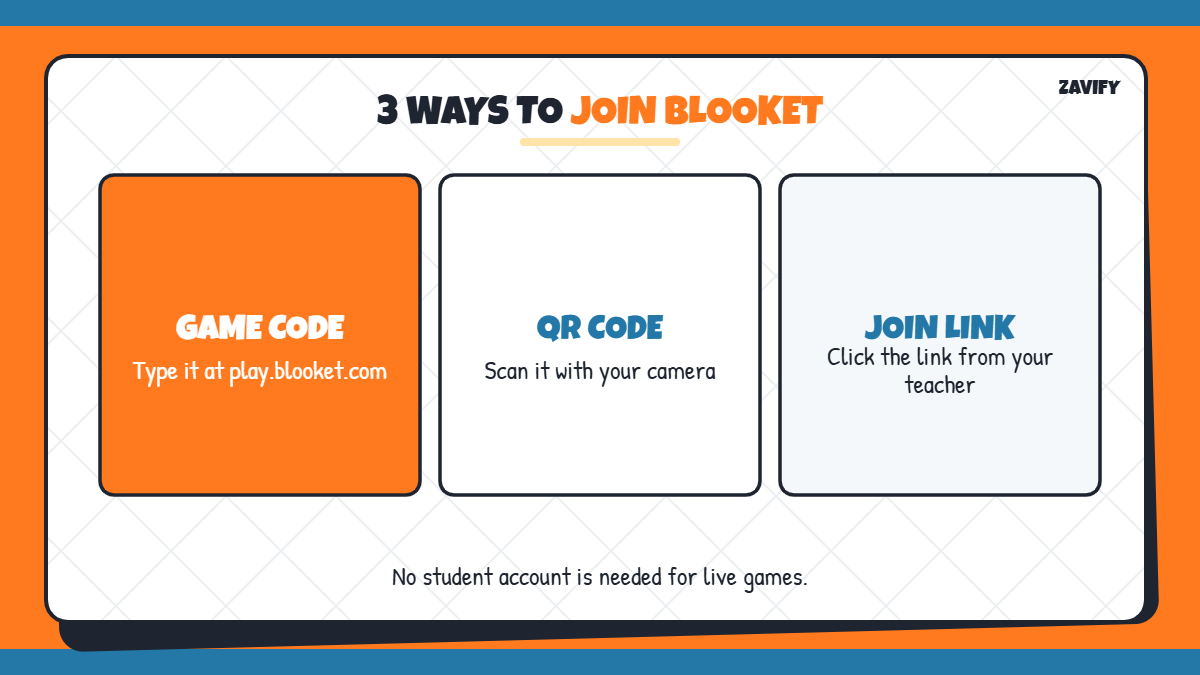
Here is a quick overview of the Blooket join options available to students:
| Method | What You Need | Best For |
|---|---|---|
| Enter game code | The code on the teacher’s screen | In-person classes |
| Scan QR code | A device with a camera | Tablets and phones |
| Click join link | The link shared by the teacher | Online or remote classes |
Now let us go through the Blooket join process step by step.
1. Get the Game Code From Your Teacher
When your teacher hosts a game, a code appears on the board or projector. According to Blooket’s help centre, this is usually a 7-digit number. Write it down if the screen will change.
2. Open the Official Join Page
In your browser, go to play.blooket.com. This is the official Blooket join page. Avoid unofficial websites that copy Blooket’s design, because they may show ads or ask for personal information.
3. Enter the Game Code
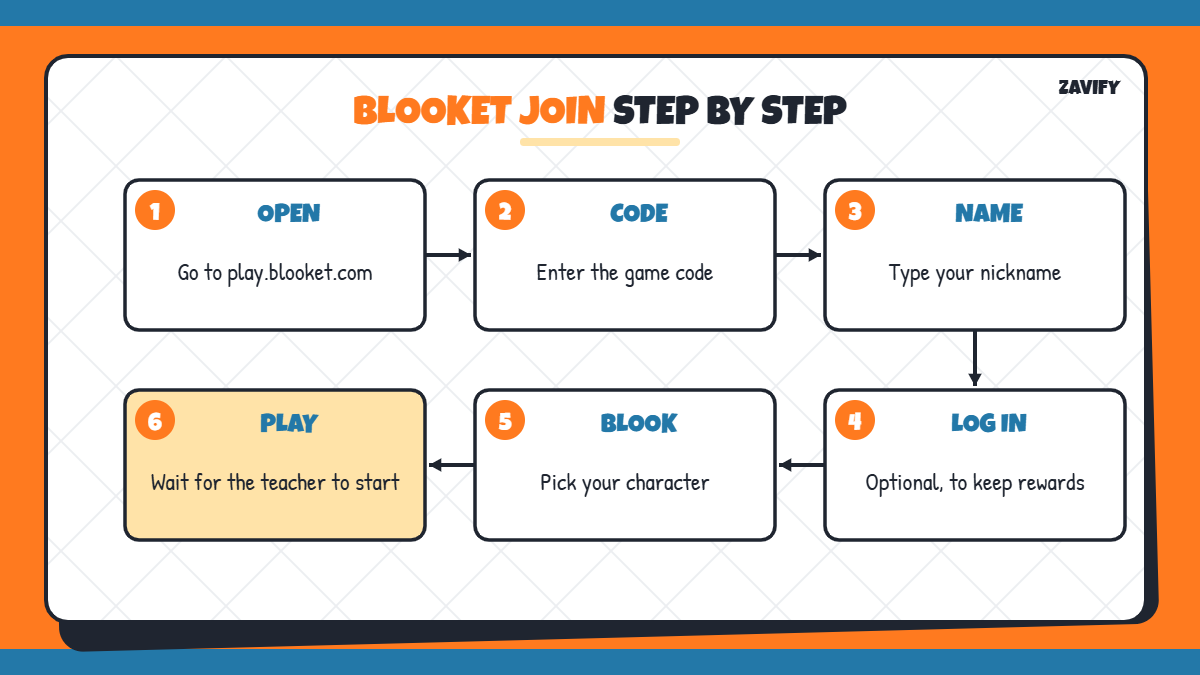
Type the game code into the box and press the arrow or Enter. If the code is correct, you move to the next screen straight away.
4. Or Scan the QR Code
Some teachers show a QR code instead. Open your device camera, point it at the code and tap the link that appears. This takes you directly to the right game without typing.
5. Or Click the Join Link
In online classes, teachers often paste a join link in the chat or on Google Classroom. Clicking it opens the game with the code already filled in, which is the fastest way to complete a Blooket join.
6. Enter a Nickname
If your teacher allows custom names, type a nickname. Use your real first name or the format your teacher asks for, so they can see who is playing. If random names are turned on, Blooket gives you a name automatically.
7. Log In if You Want to Keep Rewards
You do not need an account to play. However, if you want to earn tokens and use your own Blooks, log in to your student account before you join. Rewards earned as a guest are not saved.
8. Pick Your Blook and Wait
While you wait for the teacher to start, choose a Blook, which is your game character. Once everyone has joined, the teacher starts the game and the questions appear on your screen.
9. Join Late if Allowed
If you arrive after the game has started, you can still join only if your teacher has turned on the Allow Late Join setting. If it is off, ask your teacher to let you in or wait for the next round.
Blooket Join vs Blooket Homework
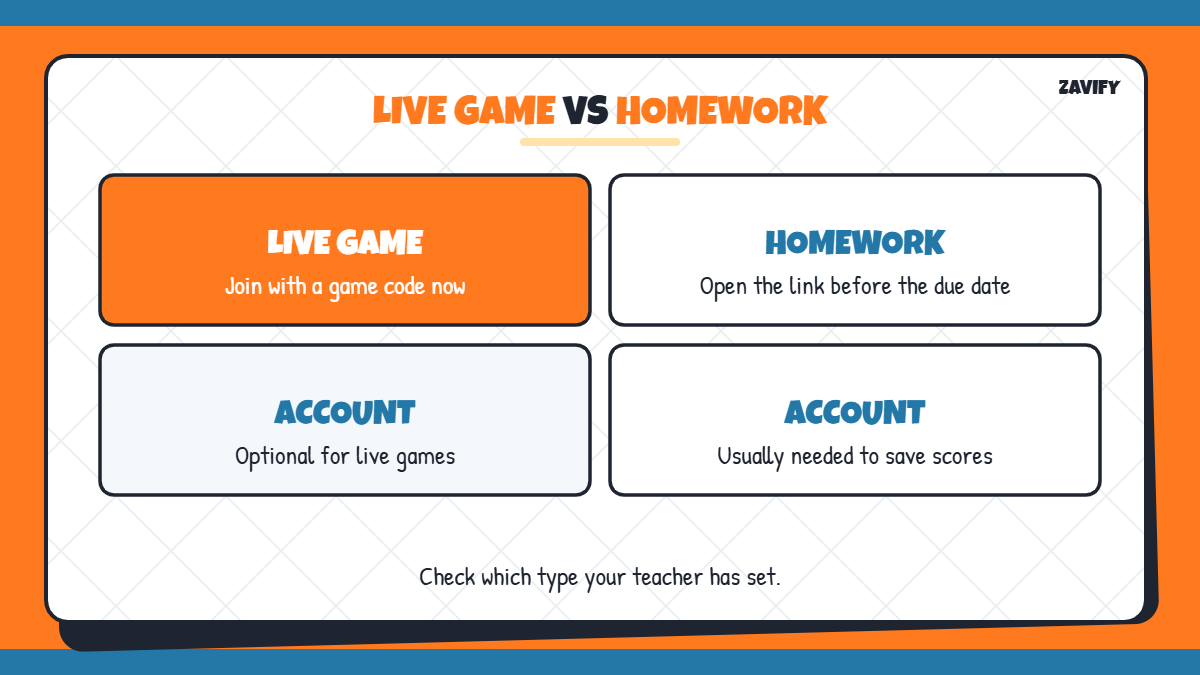
Live games use a game code and run while the teacher is hosting. Homework assignments are different: your teacher shares a link that stays open until a due date, and you usually need to log in so your score is saved. Always check which type your teacher has set.
How to Fix Blooket Join Problems
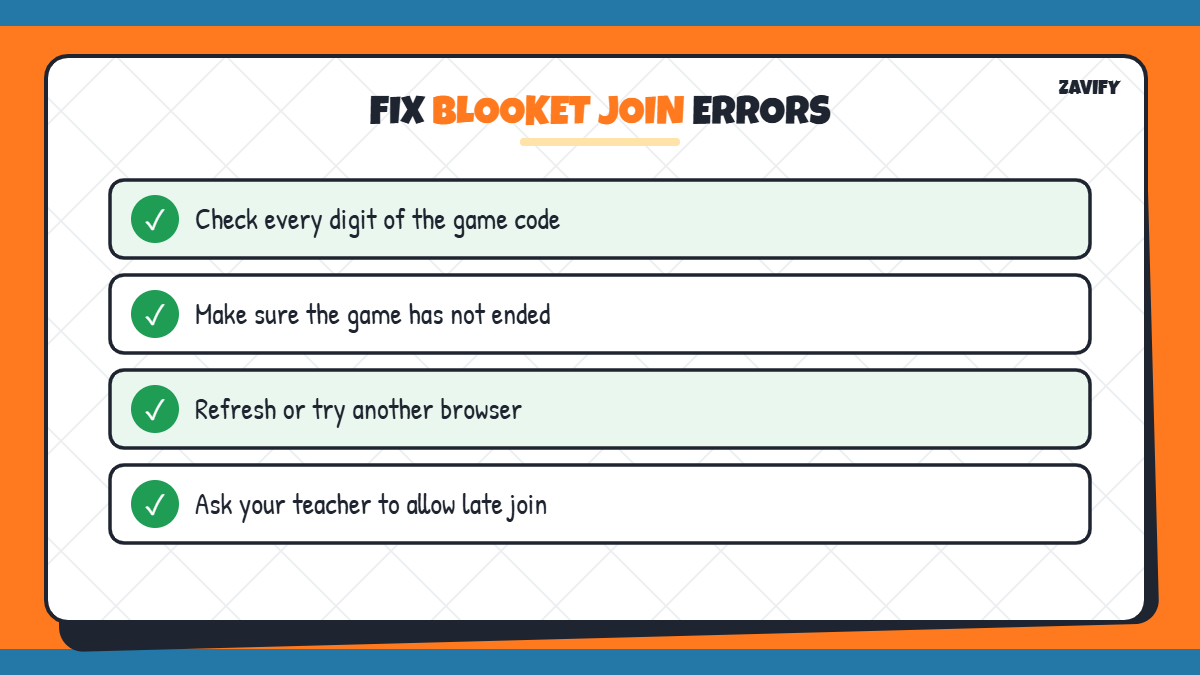
If the Blooket join page says the game was not found, one of these fixes usually works:
- Check that every digit of the code is correct.
- Make sure the teacher has not ended the game.
- Refresh the page or try another browser.
- Ask whether late join is turned on.
- Check if your school network blocks the site.
Tips for Playing Blooket Well
Blooket rewards both speed and accuracy, so read each question carefully before you tap. In many game modes, a wrong answer costs you more time than a slightly slower right answer. Listen to your teacher’s instructions about the game mode, because each mode, such as Gold Quest or Tower Defense, has its own rules.
- Sit close to good Wi-Fi to avoid lag.
- Close other tabs to keep your browser fast.
- Use the review screen after the game to learn from mistakes.
Common Mistakes Students Make
Most Blooket join problems come from small mistakes like these:
- Typing the code on an unofficial copycat website.
- Mixing up two similar digits in the code.
- Joining as a guest when the teacher needed a login.
- Using an inappropriate nickname that the teacher removes.
- Waiting too long after the game has already started.
Frequently Asked Questions
Where do I go for Blooket join?
Go to play.blooket.com and enter the game code shown by your teacher.
Do I need an account to join a Blooket game?
No. You can join a live game as a guest. You only need an account to save rewards and use your own Blooks.
How many digits is a Blooket code?
Blooket’s help centre describes game codes as 7-digit numbers.
Why does my Blooket code not work?
The code may be typed wrong, the game may have ended, or late join may be switched off.
Can I play Blooket on my phone?
Yes. Blooket works in the browser on phones, tablets, Chromebooks and computers.
Conclusion
The Blooket join process is simple: open play.blooket.com, enter the game code, choose a nickname and pick your Blook. You can also join by QR code or link if your teacher shares one.
Stick to the official page, log in when you want to keep rewards, and ask your teacher about late join if you miss the start. For more study tools, read our guide on free vs paid study tools.