Introduction
Nearpod is an interactive lesson platform used in thousands of US schools. Teachers add quizzes, polls, videos and drawing activities to their slides, and students take part from their own devices. If your teacher has shared a code, this guide shows you how to join Nearpod quickly and without an account.
We will cover the join steps, the difference between live and student-paced lessons, joining through your class platform and what to do if the code does not work.
- Students do not need an account to join.
- Teachers share a five-letter code.
- Nearpod works in browsers and on its apps.
Table of Contents
What Does Join Nearpod Mean?
To join Nearpod means entering a lesson your teacher has launched. Each lesson gets a unique five-letter code. When you enter it, you see the lesson on your screen and can answer activities as the class moves forward.
Nearpod is an independent education platform. This article is an independent student guide and is not affiliated with Nearpod.
- Code: five letters shared by your teacher.
- Live mode: the teacher controls the pace.
- Student-paced mode: you move at your own speed.
How Does Join Nearpod Work?
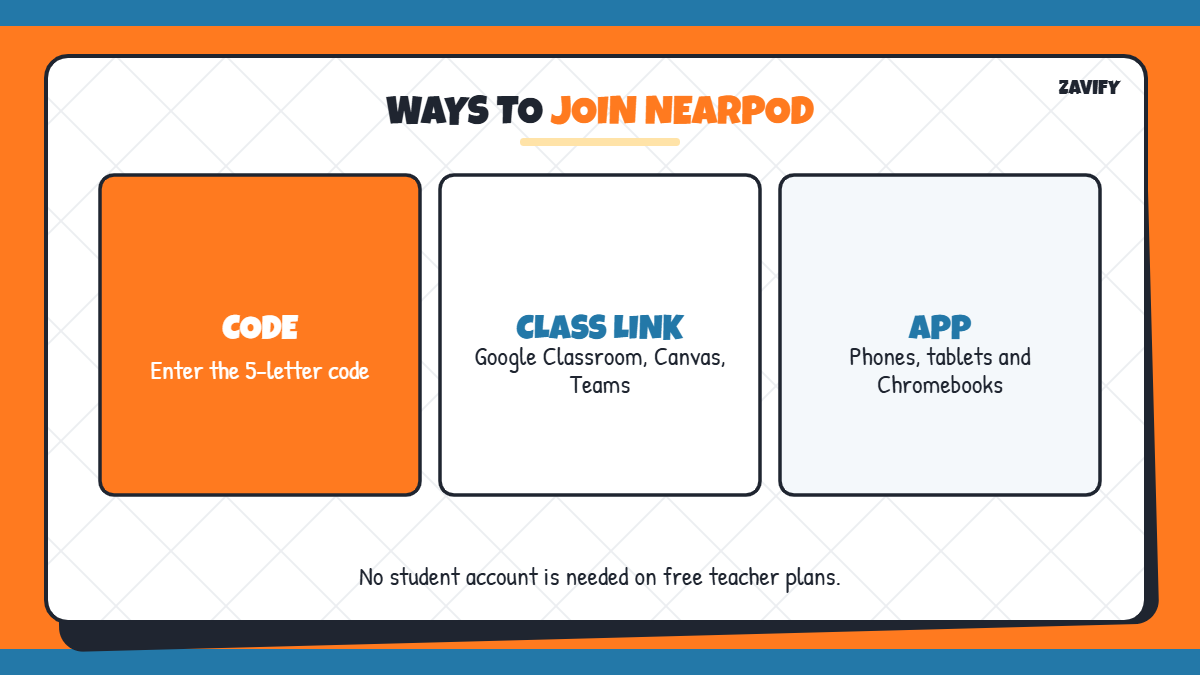
Here is a quick overview of the ways to get into a lesson:
| Method | What You Need | Best For |
|---|---|---|
| Enter the code | The five-letter code | Most lessons |
| Class platform link | Google Classroom, Canvas, Schoology or Teams | Assigned lessons |
| Nearpod app | The app on your device | Tablets and phones |
Now let us go through the steps one by one.
1. Get the Code From Your Teacher
Your teacher will display or share a five-letter lesson code. Write it down exactly as shown, because each code links to one specific lesson.
2. Open the Nearpod Join Page
Go to nearpod.com and use the Join a lesson box, or open the student join page directly. Always use the official Nearpod website rather than copycat sites.
3. Enter the Five-Letter Code
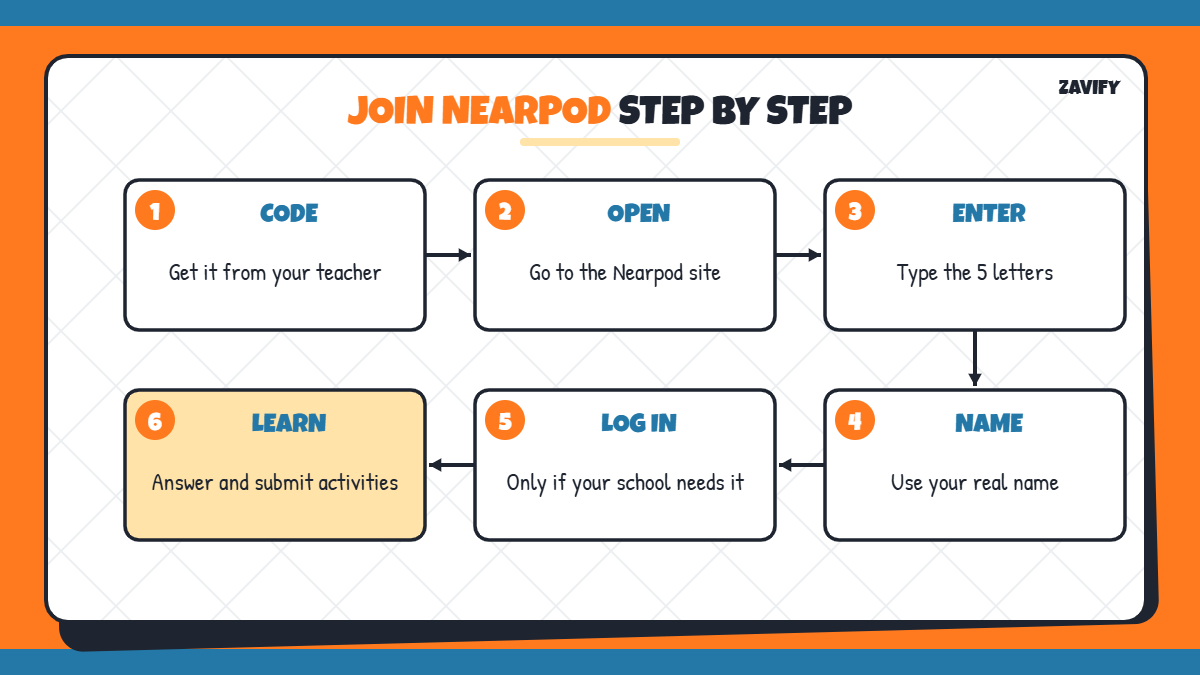
Type the code and click Join. If the code is valid, the lesson opens and you move to the next screen.
4. Or Join From Your Class Platform
Many teachers share lessons through Google Classroom, Canvas, Schoology or Microsoft Teams. Clicking the assignment link opens the lesson without typing a code.
5. Enter Your Name
Type your name as your teacher asks, usually your first and last name. This lets your teacher match your answers to you in the lesson report.
6. Log In if Your School Uses Student Accounts
With a free teacher account, no student login is needed. Some schools with district licenses turn on student accounts, so you may need to sign in with your school account.
7. Follow a Live Lesson
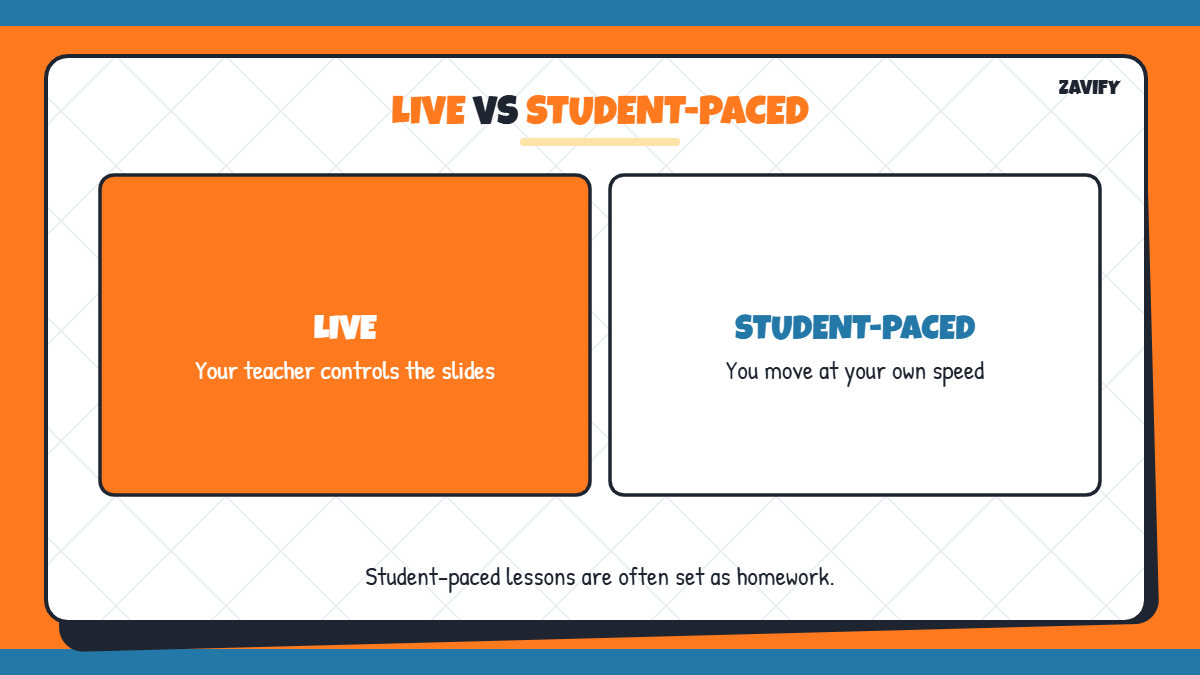
In Live Participation mode, your teacher controls the slides. Your screen changes when theirs does, and activities appear for everyone at the same time.
8. Work Through a Student-Paced Lesson
In Student-Paced mode, you move through the slides on your own, often as homework. Complete every activity before the due date so your work is recorded.
9. Submit Your Answers
Answer each quiz, poll or drawing activity and press Submit. Your teacher sees your responses instantly in live lessons or in the report afterwards.
Tips to Get the Most From Nearpod Lessons
Once you are in, the lesson becomes interactive, so staying focused pays off. Read each slide before the activity appears, and answer open-ended questions in full sentences, because teachers often share strong answers with the class. For drawing activities, keep your work neat and label key parts. If a video is included, watch it fully before answering the questions that follow.
- Keep the lesson tab open and avoid switching apps.
- Use headphones for video content in class.
- Ask your teacher if an activity is unclear.
Join Nearpod on Different Devices
You can take part on a Chromebook, laptop, tablet or phone. Browsers work for most lessons, while the Nearpod app is available on the App Store, Play Store, Microsoft Store and Chrome Web Store. If a lesson loads slowly, switching to the app or another browser often helps.
Nearpod Class Size Limits
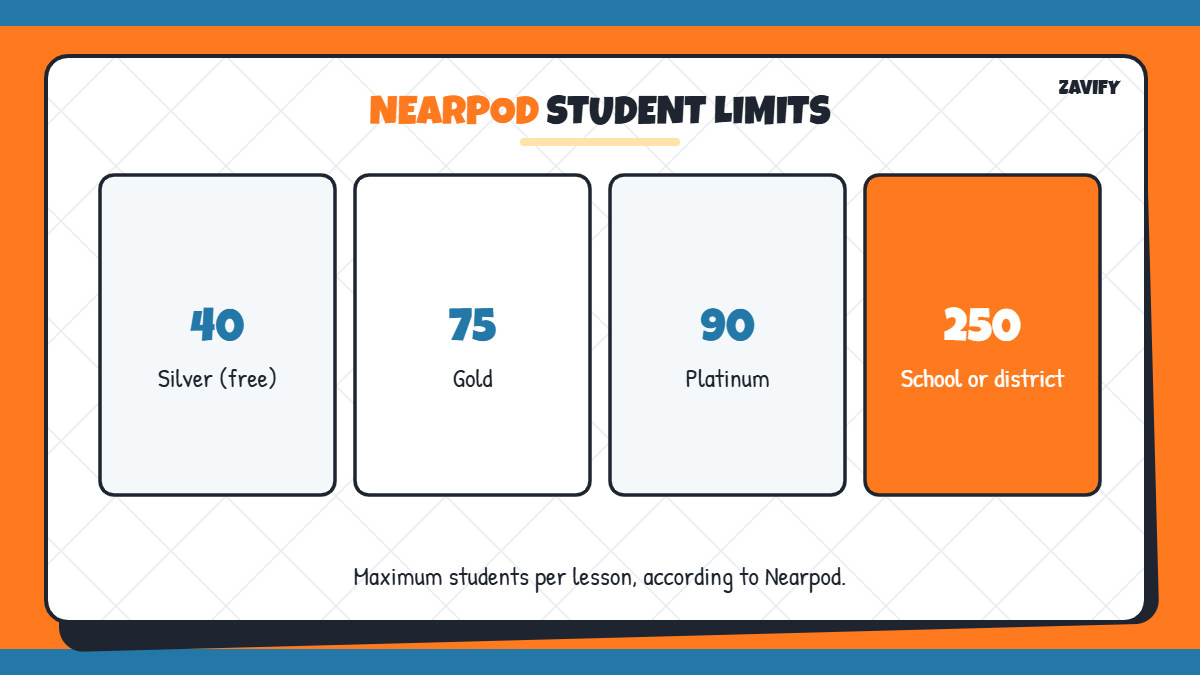
The number of students who can enter one lesson at once depends on the teacher’s plan. According to Nearpod, the free Silver plan allows up to 40 students per lesson, Gold up to 75, Platinum up to 90, and school or district licenses up to 250. If a lesson is full, ask your teacher.
How to Fix Nearpod Join Problems
If the code does not work, try these fixes:
- Check that all five letters are correct.
- Ask if the lesson is still open or has expired.
- Refresh the page or try another browser.
- Ask whether the lesson has reached its student limit.
- Check that your school network allows Nearpod.
Common Mistakes Students Make
Most joining issues come from simple mistakes like these:
- Typing a number or extra space in the code.
- Using a nickname instead of your real name.
- Joining the wrong lesson from an old code.
- Leaving a student-paced lesson unfinished.
- Forgetting to press Submit on activities.
Frequently Asked Questions
How do I join Nearpod?
Go to the official Nearpod website, enter the five-letter code from your teacher and type your name.
Do I need an account to join Nearpod?
No, not usually. Some schools enable student accounts, in which case you sign in with your school login.
How many letters is a Nearpod code?
A Nearpod lesson code has five letters.
Can I join Nearpod on my phone?
Yes. You can use a browser or the Nearpod app on phones, tablets and computers.
Why is my Nearpod code not working?
The code may be typed wrong, the lesson may have ended or the lesson may be full.
Conclusion
It is easy to join Nearpod: get the five-letter code, enter it on the official site, type your name and follow the lesson. You can also join from Google Classroom or other class platforms.
Know whether your lesson is live or student-paced, submit every activity and use your real name. For more study help, read our guide on free vs paid study tools.